

Dark Mode
Dex now has Dark Mode on the web app, making those late-night check-ins a little easier on the eyes.
Prefer a brighter look? Switch back to Light Mode, or let Dex match your system settings automatically so your workspace always feels right.
Available on: Dex web app
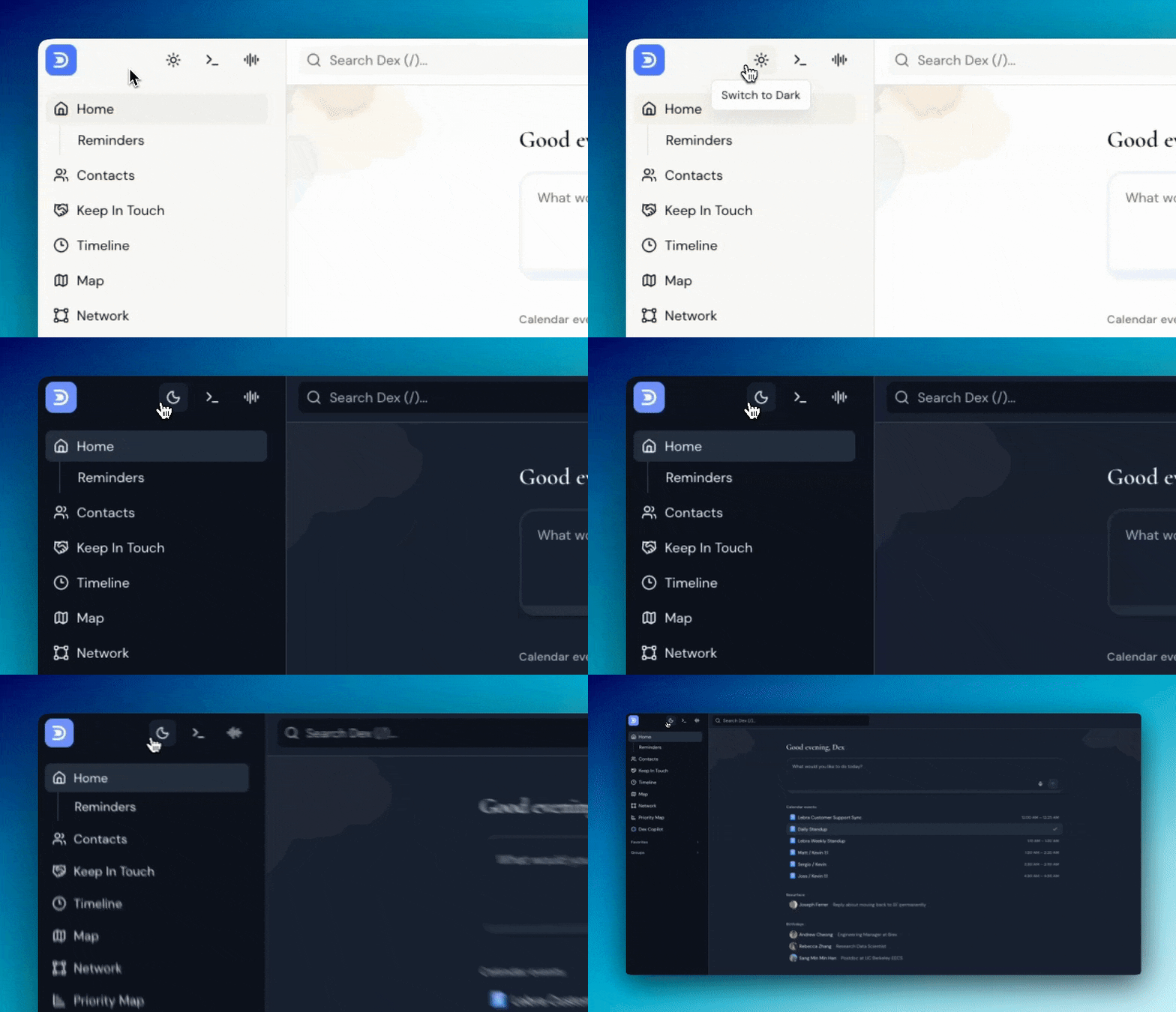
Switching themes
- Open the Dex app on web
- Click the first icon next to the Dex logo.
- Choose your theme:
| Option | Behavior |
|---|---|
| Light | Always light, regardless of your device |
| Dark | Always dark, regardless of your device |
| System | Follows your operating system, switching automatically |
The change applies immediately — no reload needed.
About System mode
System is worth trying if your device already switches themes on a schedule. macOS, Windows, and most Linux desktops can flip to dark in the evening, and Dex will follow along without you touching anything.
If you'd rather Dex stay consistent no matter what your device does, pick Light or Dark explicitly.
Troubleshooting
Some parts of the page still look light. This is a large rebuild and a few corners may not be fully themed yet. Send us what you're seeing at [email protected] — a screenshot helps.
System mode isn't following my device. Confirm your operating system is actually set to switch themes, then reload Dex. Some browsers need a reload to pick up a theme change.
My theme reset after signing in elsewhere. The setting is tied to your account and should follow you. If it doesn't, set it again and let us know.
I don't see an Appearance setting. Dark Mode is part of the new Dex web experience. Sign in on desktop at getdex.com.
FAQ
Is Dark Mode on mobile? It launched on the web app. See the changelog for what's shipped where.
Does the theme sync across my devices? Yes — it's saved to your account.
Does Dark Mode affect emails Dex sends me? No. Email appearance is controlled by your mail client.