

Dex Copilot
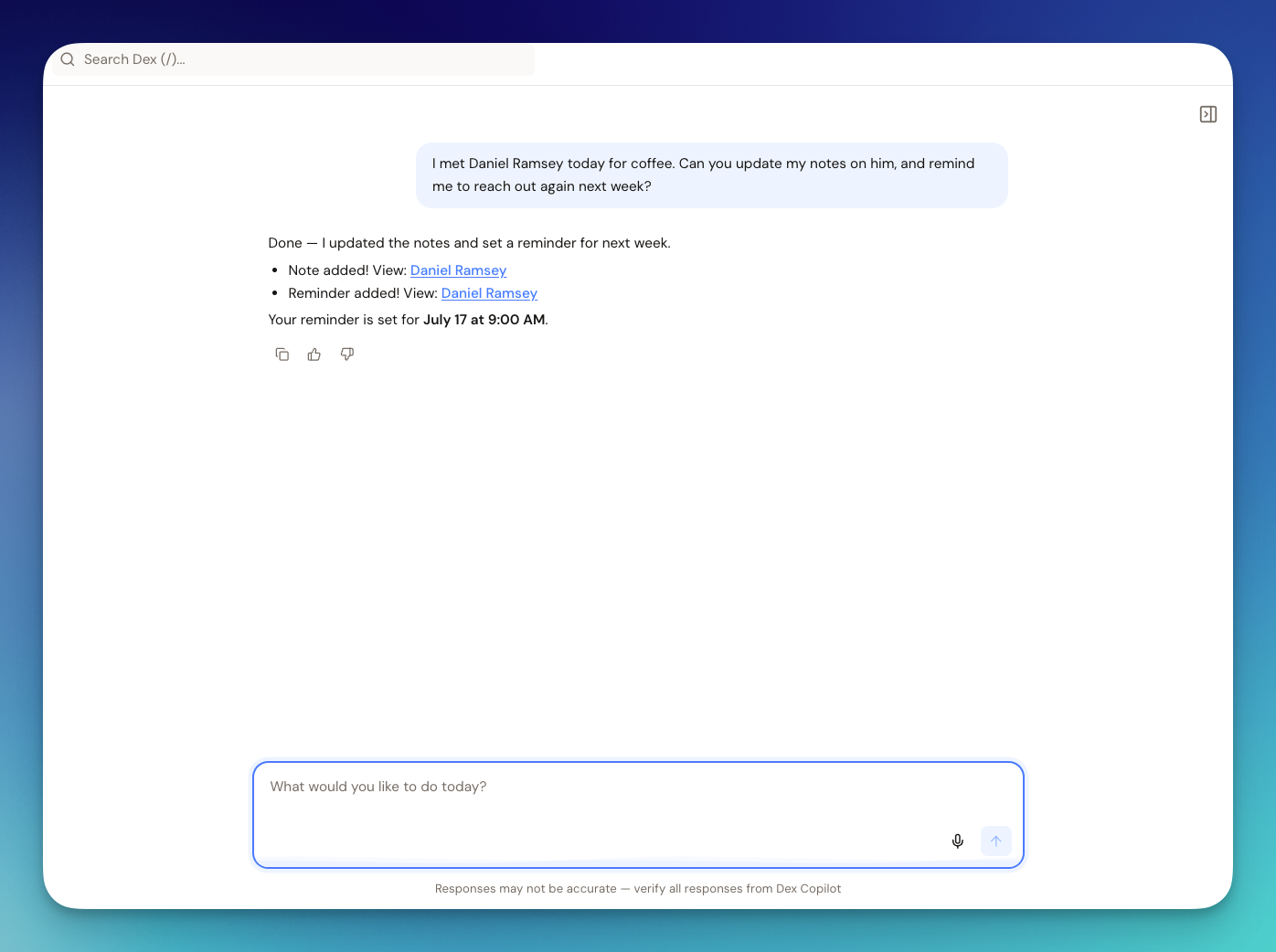
With Dex's new AI assistant, managing your contacts has never been easier! This powerful feature is designed to help you:
- Organize your contacts effortlessly.
- Set reminders for important follow-ups.
- Update details quickly and accurately.
- Track key interactions to stay on top of your relationships.
Key Features
Contact Management:
- Search for contacts by name, email, job title, location, company, or education.
- Update contact details like name, job title, birthday, location, company, emails, phone numbers, etc.
- Create new contacts if they don't already exist.
- Retrieve detailed information about specific contacts.
- Add contacts to groups (new).
- Update fields like email and phone through Copilot (new).
- Summarize past history with someone (new).
- Draft intros or gift ideas using Copilot's contextual understanding (new).
- All functionality works seamlessly on both web and mobile.
Reminders and Notes:
- Set reminders for specific contacts for follow-ups or any other purpose.
- Add notes or timeline items to contacts to keep track of interactions or important information.
- Copilot can use your past notes and interaction history to generate helpful suggestions.
- AI Assist now uses calendar and email history (new), giving you more relevant message suggestions based on actual meetings and communication.
Email:
- List your most recent inbox emails, or search your email by person, company, or topic, when a Gmail or Outlook account is connected.
- Copilot sees email metadata only (sender, subject, date, snippet), never full bodies.
Search and Filtering:
- Find contacts based on keywords in their descriptions or titles.
- Filter contacts by custom fields like birthday, birth year, last seen date, and reminder frequency.
- Identify contacts you need to keep in touch with, based on the month and reminders set.
Limitations of Your AI Assistant
While the AI assistant is here to make managing your contacts easier, there are a few limitations to keep in mind:
- Talk to Dex (voice mode): Voice mode runs on a smaller set of actions than Copilot chat does, so a request Copilot handles when you type it can come back as "I can't do that" when you speak it. By voice you can search, create and update contacts, merge contacts, add notes, set and edit reminders, manage groups, tags and custom fields, and look at your calendar. Archiving contacts, setting or completing a keep-in-touch cadence, filtering your contacts into a segment, searching your email, researching a contact, and creating or editing calendar events are chat-only today. If Dex tells you it can't do something by voice, type the same request into Copilot instead — the chat side almost certainly can.
- Field restrictions: It can't update certain fields outside its known properties, such as profile pictures or custom notes not tied to a contact.
- Contact photos: Copilot can't upload, replace or clear a contact's profile picture directly — the photo isn't one of the fields it can write. You do it yourself by clicking the contact's photo on their profile: see How do I change or remove a contact's profile picture?. Asking Copilot to enhance a contact is the exception: that overwrites their photo with the one from LinkedIn.
- Images and files: Copilot chat takes typed or spoken requests only. There's no way to attach, paste or drop an image or a file into it, on the web or in the mobile app, so it can't read a screenshot or a photo of slides for you. To keep an image with a contact, add it to a note on their timeline: in the web app, paste or drop it into the note, and in the mobile app, use the paperclip button to attach it.
- Formatting requirements: Some operations, like handling dates and times, may require specific formats.
- External platform interactions: The assistant can't interact with systems or platforms outside of Dex.
- Tag creation: Copilot cannot create a new tag for you. These must be created manually.
- Unread status: Copilot can list and search your email, but it can't tell whether a message is unread.
- Text messages: Copilot can tell you the most recent message with a contact you name, since that snippet is part of their contact details — but it can't search your messages or tell you which SMS, iMessage or WhatsApp ones you missed today or still owe a reply to. Dex only ever keeps that one most recent message per contact, so there's no history to search — see Can Dex show me the text messages I missed today?.
- Exporting contacts: Copilot can export a group's notes to a spreadsheet, but exporting your contacts, notes, or network updates to CSV is done from Settings → Workflow → Sync & Import/Export.
- Clearing out all your contacts: Copilot can archive or delete contacts you name, and it can reset all your Dex data once you confirm: it shows you the counts and asks you to reply with
RESET MY DEX DATAbefore anything is deleted. You can also do the reset yourself with Reset data under Settings → Account → Profile. See How do I delete all my contacts and start over?. - Deleting your account: Copilot cannot delete your account. You do it yourself from Settings → Account → Profile, using the Delete account button.
- Your API key: Copilot has no tool that can read your API key, so it can't tell you what it is. You can see it yourself at Settings → Workflow → Dex API & MCP — click Set up on the Dex API Key row and the key is shown in full. See Authentication.
- Language of AI-generated messages: Copilot chat replies in whatever language you write to it in, but AI Assist's conversation starters and drafted emails come back in English by default — there's no language setting and no per-contact language. Ask Copilot for the draft in the language you want instead: see Can AI Assist write suggestions in German or another language?.
Despite these limitations, the assistant is a powerful tool to help streamline your contact management. Use its capabilities to simplify your workflow, and it will always do its best to assist with your tasks and queries!
Messaging Dex and Daily Digests
Stay connected with your network wherever you are! Just text Dex like you'd text a friend. No apps to open, no complicated interfaces, just simple text messages that help you nurture your relationships on the go.
Messaging with AI Assist
Dex features helpful reminders to ensure you stay connected with your contacts, and even assists you in drafting messages through AI!