

Dex Voice Mode
You can now talk to Dex. Voice mode lets you create or update records in Dex just by speaking, and ask questions about your network and get an answer back right away.
You: "Okay Dex, who are the software engineers I know in New York?"
Dex: "Checking… You know 17 software engineers in the New York area."
Where You Can Use Voice Mode
Voice mode runs in the Dex web app and in the Dex desktop app for Mac and Windows. It requires a Dex Professional subscription. On other plans, clicking the voice mode icon opens the upgrade to Professional screen instead of starting a conversation.
Can I Use Voice Mode on My iPhone or Android App?
No, not in the mobile apps. Talking to Dex out loud is a web and desktop feature, and there is no Talk to Dex screen in the iPhone or Android app today.
What the mobile app has instead is voice dictation, which is a different thing: you speak, Dex turns it into text, and you review it before it goes anywhere. Tap the mic to dictate a message to Copilot, or choose Add with voice when writing a note to dictate the note and have AI clean it up. See Add notes with voice + AI cleanup.
Getting Started
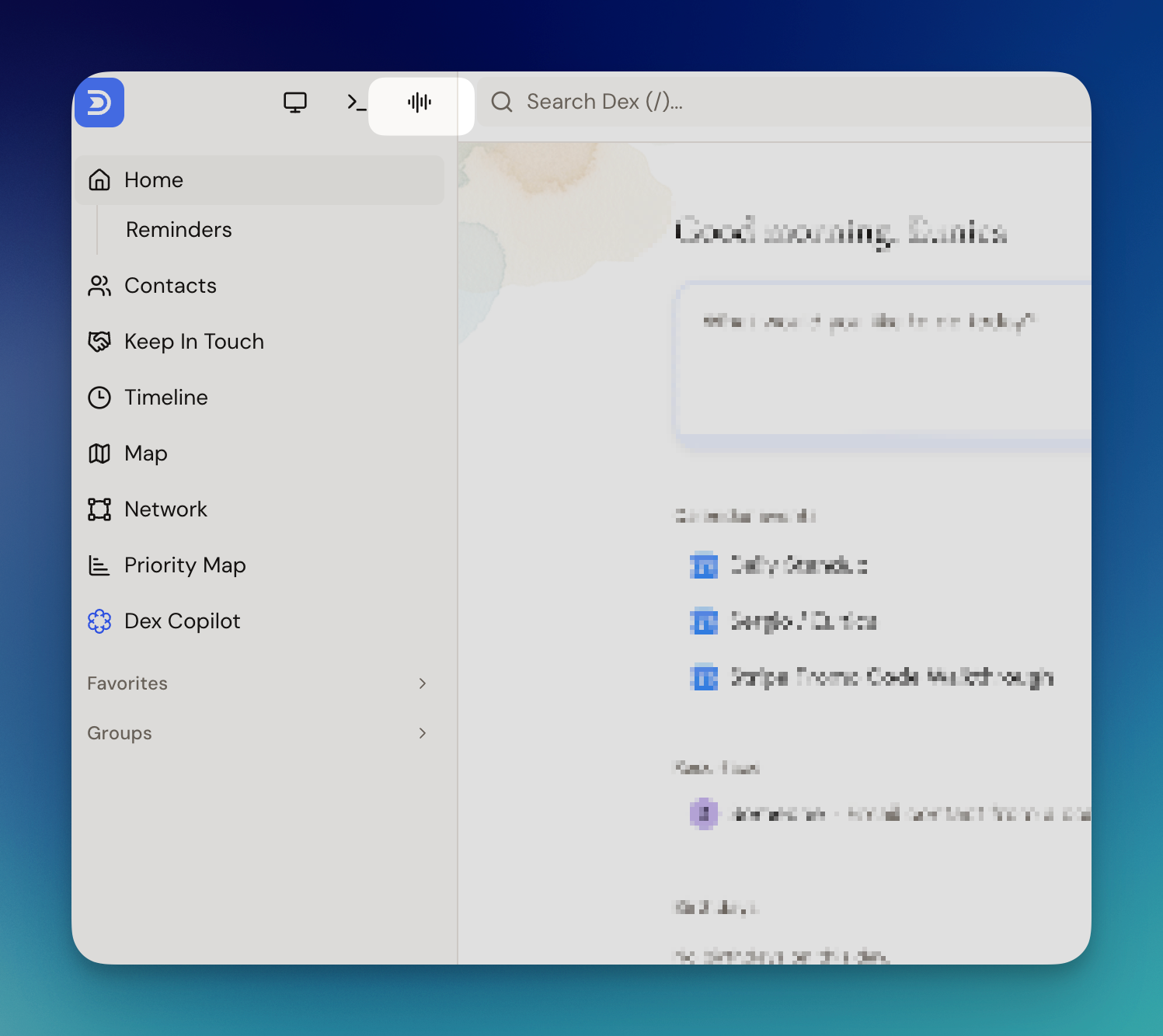
Open Talk to Dex
On the web app, click the voice mode icon (the sound-wave icon) in the upper left-hand corner, next to the search bar. The desktop app has it too, and on a Mac it sits in the top row beside the window buttons. Voice mode isn't in the Dex mobile app. There you can dictate a note instead with Add with voice.
Start talking
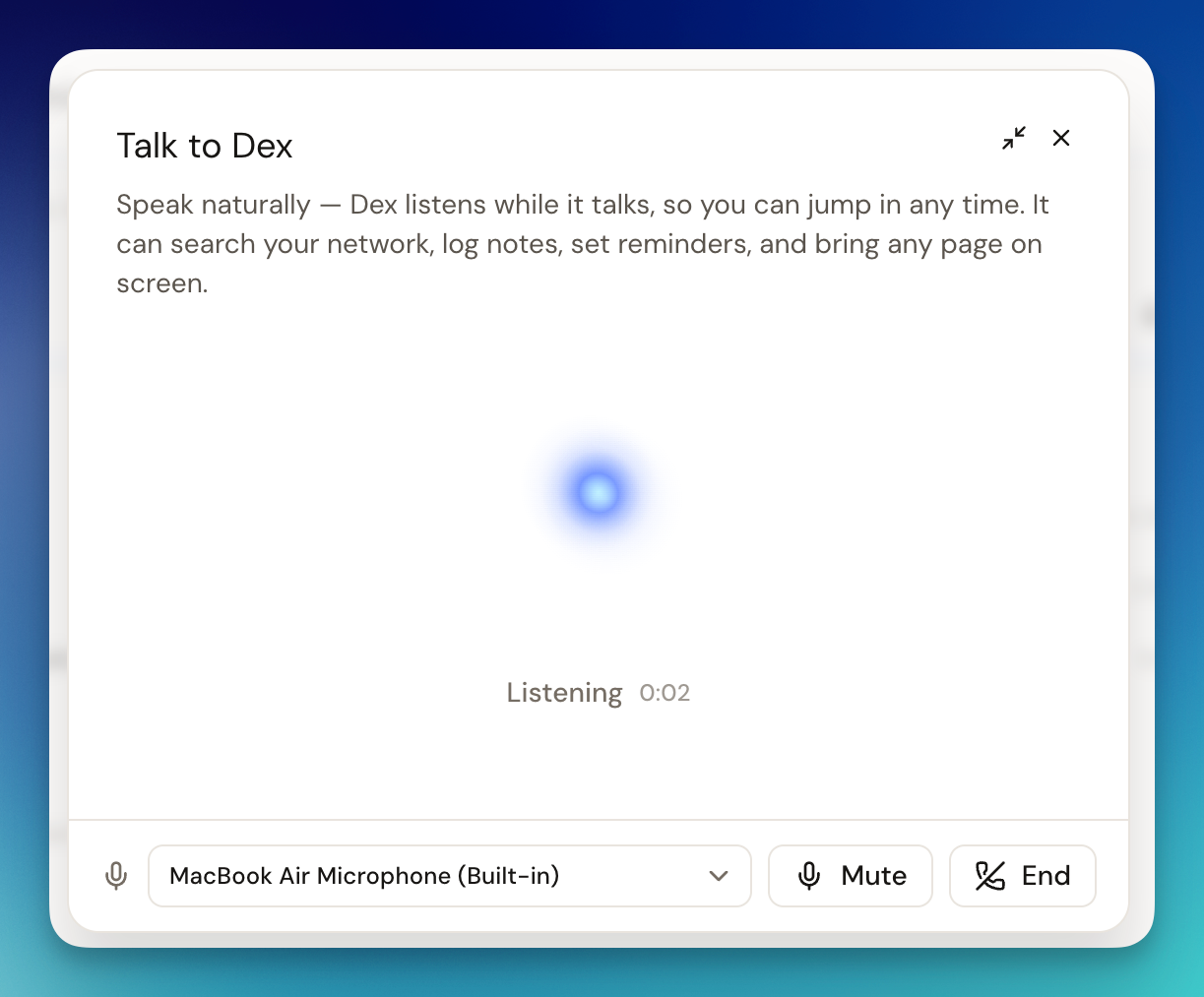
The Talk to Dex panel opens and starts listening. Ask a question or tell Dex what to do, the same way you'd say it to a person.
Listen for the answer
Dex answers out loud and makes any changes you asked for. It keeps listening while it talks, so you can jump in at any time to correct it or ask a follow-up.
Panel controls
- Microphone picker: choose which microphone Dex listens on, for example your laptop's built-in mic or a headset.
- Mute: stop Dex from hearing you without ending the conversation.
- End: hang up and close the conversation.
- Minimize (the arrows in the top right): shrink the panel so you can keep using Dex while you talk. Dex can also bring any page on screen for you, like a contact's profile.
What You Can Do with Voice Mode
🔍 Ask about your network
Ask general questions about the people you know and Dex gives you an accurate answer from your contacts.
- "Who are the software engineers I know in New York?"
- "Who do I know at Stripe?"
- "When did I last talk to Maria?"
👤 Create and update contacts
Add someone new or change their details without opening their profile.
- "Add Sarah Chen, she's a product designer at Figma."
- "Update Mike's job title to Head of Marketing."
- "Merge the two contacts for Alex Thompson."
📝 Remember important details
Tell Dex what you want to remember about someone and it's saved as a note on their contact.
- "Add a note to Sarah: she's starting a fintech company and loves hiking on weekends."
⏰ Set reminders to reach out
- "Remind me to call Mike about the marketing proposal next Tuesday."
- "Move my reminder for Jess to Friday."
🗂️ Organize your contacts
- "Add Sarah to my Investors group."
- "Tag Mike as a mentor."
- "Set Jess's favorite coffee to oat flat white."
📅 Check your calendar
- "Who am I meeting tomorrow?"
🖥️ Bring up a page
Ask Dex to open a contact or a page in the app and it shows it on screen while you keep talking.
- "Pull up Sarah Chen's profile."
- "Show me my reminders."
Voice Mode vs. Copilot Chat
Voice mode is built on Dex Copilot, but it runs on a smaller set of actions than Copilot chat does. A request Copilot handles when you type it can come back as "I can't do that" when you speak it.
| Voice mode | Copilot chat | |
|---|---|---|
| Search contacts and ask questions about your network | ✅ | ✅ |
| Create, update, and merge contacts | ✅ | ✅ |
| Add notes | ✅ | ✅ |
| Set and edit reminders | ✅ | ✅ |
| Manage groups, tags, and custom fields | ✅ | ✅ |
| Look at your calendar | ✅ | ✅ |
| Archive contacts | — | ✅ |
| Set or complete a keep-in-touch cadence | — | ✅ |
| Filter your contacts into a segment | — | ✅ |
| Search your email | — | ✅ |
| Research a contact | — | ✅ |
| Create or edit calendar events | — | ✅ |
Everything listed under Limitations of Your AI Assistant on the Copilot page applies to voice mode too.
Voice Mode vs. Voice Notes
Voice mode is a conversation: you ask, Dex answers and acts. If you just want to dictate a note and have it cleaned up, use Add with voice when creating a note instead. See Add notes with voice + AI cleanup.
You can also send voice messages to Dex over WhatsApp. See Messaging Dex.