

Import Features
Importing from Outlook
Connecting Outlook does not bring your Outlook contacts across. Connecting your Outlook account under Settings → Workflow → Sync & Import/Export syncs your email and calendar only. The import below is the separate step that copies your address book into Dex.
Importing from Outlook
Open the Import tab
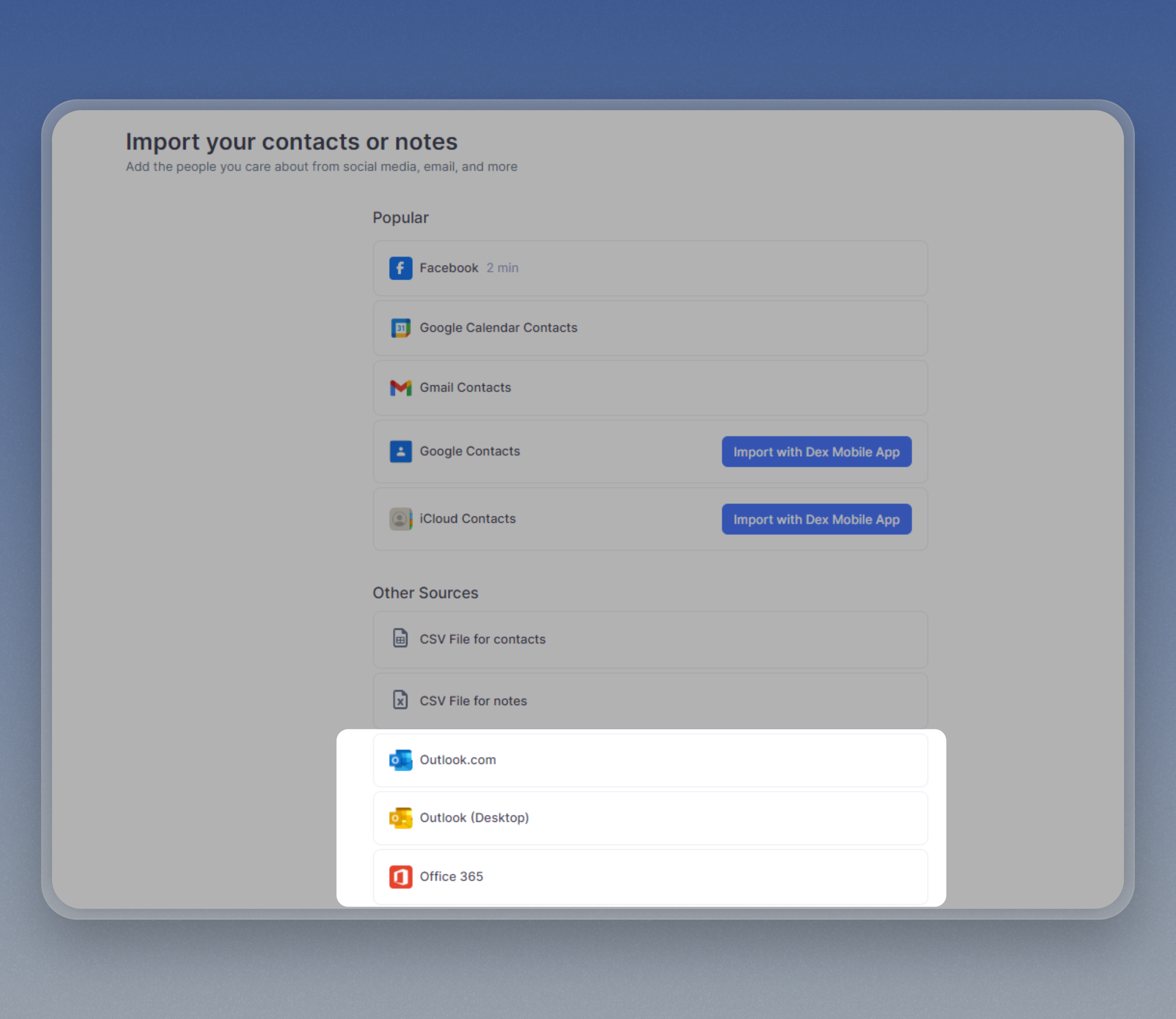
Go to Settings → Workflow → Sync & Import/Export and open the Import tab. Under Other sources, find Outlook.com, Outlook (Desktop) or Office 365, depending on which version of Outlook you use, and click Import contacts on that row.
Authenticate your Outlook account
On the popup window, log in to your Outlook account and allow access to Dex.

Select the contacts you want to import
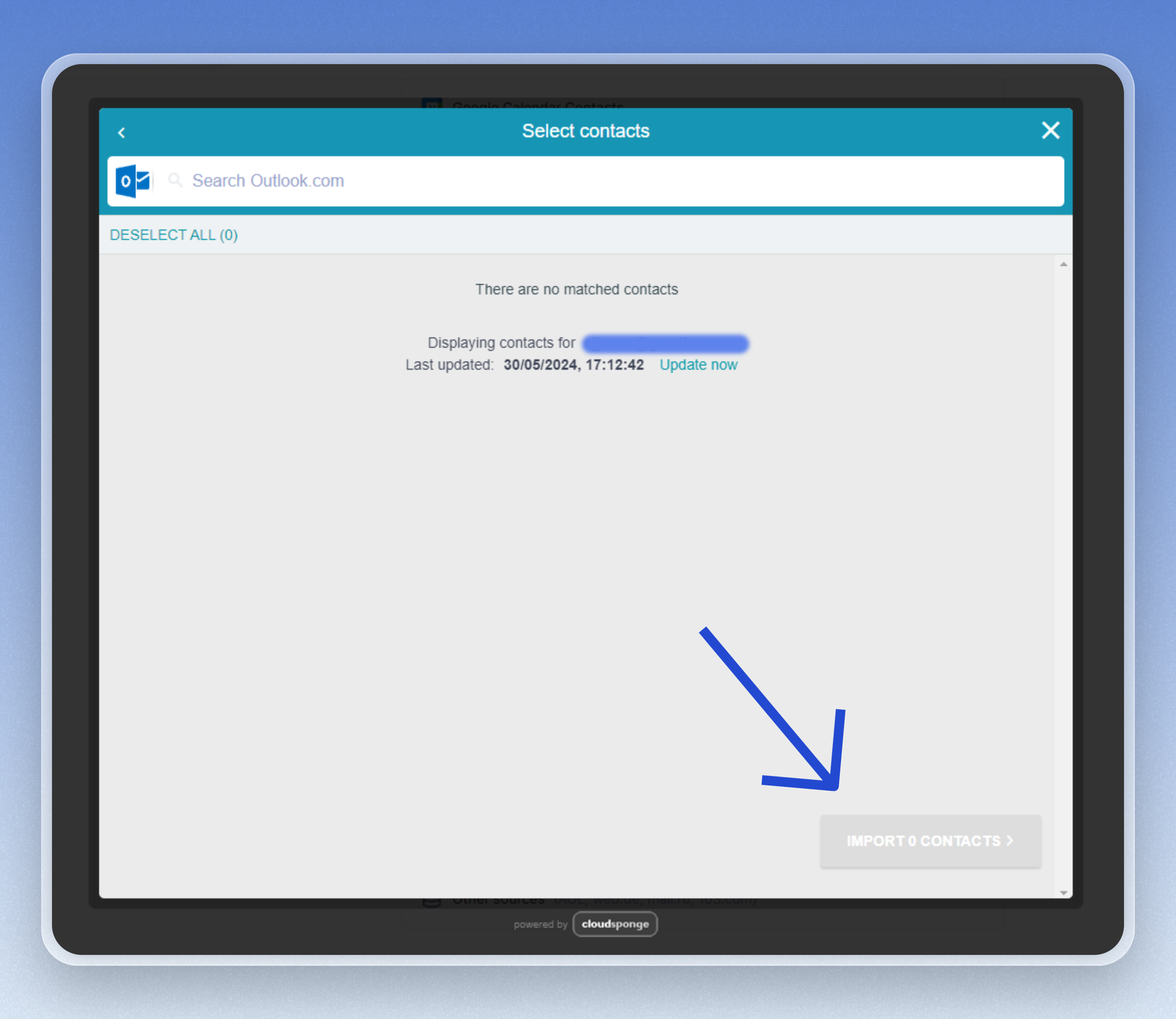
Pick the contacts you want and confirm. Dex adds them to an Imported contacts group.
Contacts you add to Outlook later
The import is one-time. A contact you add to your Outlook address book afterwards doesn't come across to Dex by itself. Run the import again, or let Dex add people as you interact with them.
Go to Settings → Workflow → General to control that:
- Automatically add contacts from calendar events adds people from your meetings. It's on by default.
- Automatically add contacts from email adds people you send email to. It's off by default, and people who only email you are not added.
Both work for Outlook and Google accounts. See Outlook Sync for what the connection itself does.