

Mail Merge
Mail Merge lets you send a personalized email to up to 200 contacts in one workflow.
You write one message, and Dex automatically generates an individualized version for each recipient using contact variables and optional AI personalization.
Can Dex write a message for each contact and send them?
Yes. Writing one message, personalizing it per person, and sending it to many contacts at once is exactly what Mail Merge is for — whether you call it bulk email, mass email, a batch, or an outreach campaign.
Select the contacts you want on the Contacts page or on any Group, then choose Email · Mail merge. You write the message once, Dex builds an individual version for each recipient, you review them, and you send from your own connected Gmail or Outlook account.
Mail Merge is available on the Professional plan and takes up to 200 contacts per campaign.
When Should I Use Mail Merge?
Use Mail Merge when you want to:
- Reach out to investors or prospects
- Follow up after an event or meeting
- Reconnect with dormant contacts
- Send birthday or reminder emails
- Run small, personalized outreach campaigns
Each recipient receives their own customized version, not a generic blast.
Key Capabilities
- Compose one subject and body with dynamic
{variables} - Format your message with rich text — bold, italics, lists, links, and more
- Select up to 200 contacts
- Insert contact and sender variables with one click
- Generate AI-personalized paragraphs per recipient
- Apply, create, edit, and save reusable templates
- Manage missing or multiple email addresses
- Add CC and BCC recipients per contact
- Review and edit each email individually before sending
- Send using your connected Gmail or Outlook account
Getting Started
Opening Mail Merge
You can open Mail Merge from:
- Group detail page: Select contacts, then click Email · Mail merge.
- Contacts table: Select contacts, then click Email · Mail merge.
Your selected contacts will automatically appear in the sidebar.
Note: Mail Merge is available on the Professional plan.
Adding and Managing Contacts
The left sidebar displays all contacts included in your campaign.
Search
Search for contacts by name or email address.
Remove a Contact
Click the × next to a contact to remove them from the campaign.
Add More Contacts
Click Add more contacts to:
- Search for contacts
- Select contacts individually
- Hold Shift to select a range of contacts
Limit: Mail Merge supports up to 200 contacts per campaign.
Composing Your Email
Mail Merge includes two editable fields:
- Subject
- Body
Both fields support dynamic variables for personalizing each email.

➕ Inserting Variables
Click + Variable to insert placeholders.
| Variable | Placeholder |
|---|---|
| Contact First Name | {contact.first_name} |
| Contact Last Name | {contact.last_name} |
| Contact Full Name | {contact.full_name} |
| Your First Name | {user.first_name} |
| Your Full Name | {user.full_name} |
| Your Email | {user.email} |
| AI Personalization | {ai.personalization_content} |
⚠️ AI personalization is available only in the body, not the subject.
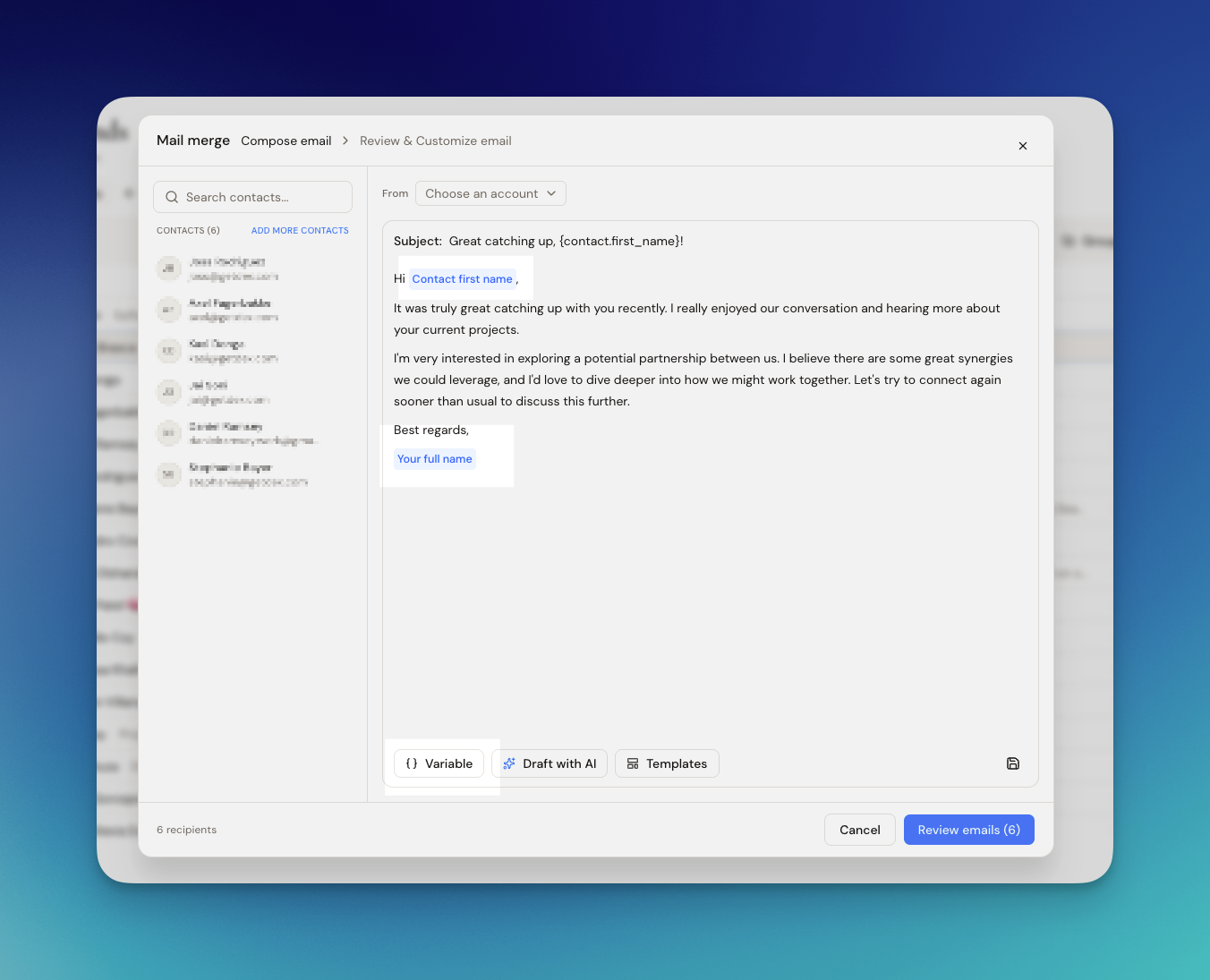
Formatting Your Email
The body editor supports rich text, so your outreach looks polished and on-brand instead of plain.
Highlight any text in the body to bring up the formatting toolbar, then apply:
- Bold, italics, and underline
- Bulleted and numbered lists
- Hyperlinks
- Headings
Formatting works right alongside variables and AI personalization — each recipient gets their own values dropped into the same formatted layout.
Rich text formatting applies to the body only. Subjects remain plain text.
Consistent rendering across email clients
Mail Merge emails are built to render consistently across email clients — including Outlook — so the layout, spacing, and styling your recipients see match what you composed.
Draft with AI
Click Draft with AI to generate a suggested subject and body.
Review before applying.
Templates
Click Templates to:
- Apply a saved template
- Create a new template
- Edit or duplicate templates
You can also click Save as template after composing.
Managing Email Addresses
Contacts Without an Email
If a contact has no email:
- Add one inline in the sidebar
- Choose from suggested past interaction emails
When sending, you can:
- Send anyway (skip missing emails)
- Add emails first
Contacts With Multiple Emails
Select the preferred email from the dropdown next to their name.
CC & BCC
Click CC or BCC under a contact's email.
CC/BCC entries apply only to that specific contact.
Review & Customize
Click Review emails → to preview individual messages.
In Review mode:
- Variables are replaced with real values
- AI personalization appears inline
- Your rich text formatting is preserved
- You can edit emails individually
Edits apply only to that contact and do not affect others.
If AI personalization is included, it generates automatically when entering Review mode.
Sending
Select a Sending Account
Choose your connected Gmail or Outlook account.
Your primary account is selected by default.
Send
The Send button shows how many contacts will receive the email.
Emails are sent in small batches to comply with provider limits.
Missing Emails
If some contacts have no email, you'll be prompted to:
- Send to valid contacts only
- Add missing emails first
Partial Failures
If an individual email fails (e.g., provider error), the rest of the campaign continues.
You'll see a summary afterward.
AI Personalization
The {ai.personalization_content} variable inserts a unique paragraph for each contact.
Dex uses relevant profile details, relationship context, and recent interactions to generate a tailored snippet.
What AI Uses (When Available)
- Name, title, company, location
- Tags and groups
- LinkedIn summary and experience
- Recent notes, meetings, emails
- Upcoming reminders or birthdays
How It Works
- Each contact receives a separately generated paragraph
- Only real data from your workspace is used
- No invented information
- If there's limited data, it returns a short or empty result
Important Notes
- AI personalization works only in the body
- It runs when you enter Review mode
- If personalization fails, the email sends without the AI paragraph and a warning appears
Email Templates
Apply a Template
Open Templates, select one, and click Apply.
Built-in examples:
- Catching up
- Follow-up
- Birthday
- Reconnecting
Create a Template
Click New template, enter name, subject, and body, then save.
Edit, Copy, Delete
Custom templates can be:
- Edited
- Duplicated
- Deleted
Built-in templates cannot be modified.
CC/BCC email into Dex
If you're using a non-Gmail account to send emails and wish to view these exchanges in a contact's timeline within Dex, this is the feature for you.
About Dex Extension
Dex Extension allows you to quickly import, track emails, add a note, and more without leaving your contact's profile!