How to Share Contacts With Your Team Without Losing Your Personal Network
Shared contact management gives a team one place to find and update the work contacts it needs, while each person keeps their personal network private. Here are five ways to share contacts with your team, from Google and Outlook to a shared workspace, plus the rules that make sharing stick.



Ask your team "does anyone know someone at Northwind?" and watch what happens. Someone scrolls their phone. Someone searches Gmail. Someone says "I think Sam met their CFO at a conference," and Sam is on vacation.
The contacts exist. They're just split across a dozen personal address books. The usual fix makes it worse: share everything, and now your coworker's mom, her dentist, and her ex are sitting in the company directory. So people quietly refuse, and the shared list stays half empty.
Good shared contact management fixes both problems. The team finds the work contacts it needs, and everyone's personal network stays personal. Below are five ways to share contacts with your team, with the Google and Outlook steps spelled out, plus the few rules that decide whether people actually share.
Fast facts:
Shared contact management means giving a team one place to find and update the contacts it works with, while each person controls what they share.
Google Contacts delegation only works inside your own organization, on a computer, and only after your admin turns on contact sharing.
Outlook contact folder sharing needs an Exchange account and isn't supported in Outlook on the web.
Share a dedicated work folder or group, never your whole address book.
A shared spreadsheet is fine for a one-off. It's stale the moment someone changes a phone number.
What is shared contact management?
Shared contact management is the practice of keeping a team's work contacts (clients, partners, vendors, candidates, investors) in one place that everyone can search and update, instead of in separate phones and inboxes.
When it works, anyone on the team can answer these in a few seconds:
Do we already know this person or company?
Who on the team knows them, and how recently did they talk?
Is this the latest email and phone number, or a copy from two years ago?
It's not the same as a company directory. A directory lists your own employees. Shared contact management covers the people outside the company, which is where most of the value (and most of the mess) lives. If you're comparing tools for the individual side of this, our roundup of contact management software covers the best personal options.
Why sharing contacts with your team is harder than it sounds
On paper, sharing contacts is a five-minute job. In practice, three things go wrong.
First, sharing is usually all or nothing. Most built-in tools share a whole address book or a whole folder. Personal and work contacts live in the same list for most people, so sharing the list means oversharing.
Second, copies go stale. Exported lists and spreadsheets are snapshots. The day after you send one, someone changes jobs and the copy is wrong. Nobody updates the sheet, so people stop trusting it.
Third, a name on its own doesn't tell you much. Knowing that "Priya Shah, Northwind" is in the shared list isn't the useful part. You want to know who on the team knows her, when they last talked, and what was said. Plain contact sharing doesn't carry that context.
So whatever you choose has to share selectively and keep itself current. Ideally it also keeps the history attached to each contact.
5 ways to share contacts with your team
Here's the short version before the details.
Method | Best for | Main limit |
|---|---|---|
Export a CSV or Google Sheet | A one-off handoff | Out of date as soon as you send it |
Google Contacts delegation | An assistant managing one person's contacts | Same organization only, computer only |
Google Workspace shared external contacts | A company-wide list of key partners | Admin-managed, no history or context |
Outlook shared contacts folder | Microsoft 365 teams on desktop Outlook | Needs Exchange, not in Outlook on the web |
A shared relationship workspace | Teams that need context and privacy | A new tool to set up |
1. Export a CSV or Google Sheet
Every contacts app can export a file. Pick the contacts, export them, and drop the file into a shared drive or a Google Sheet.
It works with any account, free or paid, inside or outside your company. That's the only real advantage. The file doesn't sync, so it starts going stale the moment you share it, and edits to the sheet never flow back into anyone's address book. Use it for handing a client list to a contractor, not for running a team.
2. Google Contacts delegation
Google Contacts lets you invite someone to manage your contacts. They can add, edit, and delete entries, and the changes show up in your Contacts. It's built for cases like an assistant who manages an executive's address book.
The rules, per Google's Help Center:
Your Directory administrator has to turn on contact sharing first.
You can only delegate to people in the same domain or organization, and both of you need work or school accounts.
You and your delegates have to be on a computer. Delegated contacts don't show up in the mobile Contacts app.
Delegates can't import, export, merge duplicates, or recover deleted contacts.
Access to your contacts doesn't give anyone access to your email.
The catch for team use is that you're handing over your entire contact list. There's no way to share only the work contacts, so it rarely works as shared contact management for a whole team.
3. Google Workspace shared external contacts
If you're on Google Workspace, an admin can add outside contacts, like consultants or partners, to your company Directory. After that, everyone in the organization can find them, for example when typing an address in Gmail. Google's admin guide to shared external contacts lists three ways to add them: the Domain Shared Contacts API, Google Workspace Marketplace apps, or Google Cloud Directory Sync. The limit is 200,000 external contacts or 40MB of storage, whichever comes first.
This is a good fit for a short, stable list that everyone needs, like your accountant, your main suppliers, or your top partners. It isn't built for day-to-day relationship work. Regular users can't add to it, and there's no record of who knows each contact or what was discussed.
4. Outlook shared contacts folder
In Outlook, you can share a contacts folder with people in your organization and set what they can do with it. Microsoft's guide to sharing a contacts folder covers the details. The important parts:
It requires a Microsoft Exchange account.
Sharing or viewing a shared contacts folder isn't supported in Outlook on the web.
You can share a folder other than your default Contacts folder, so you can create one for a client or project and share only that.
You choose a permission level for each person, from Reviewer (read only) up to Editor (create, change, and delete everything).
Sharing outside your organization only works if your admin's sharing policy allows it.
The separate-folder option makes Outlook one of the better built-in tools for shared contact management, as long as your team lives in desktop Outlook. Teams that mostly work in the browser will hit the Outlook on the web limit quickly.
5. A shared relationship workspace
The last option is a tool built for teams to share contacts, sometimes called a team CRM or relationship intelligence tool. Instead of copying contacts into a shared list, each person connects their own email and calendar, and chooses what the team can see.
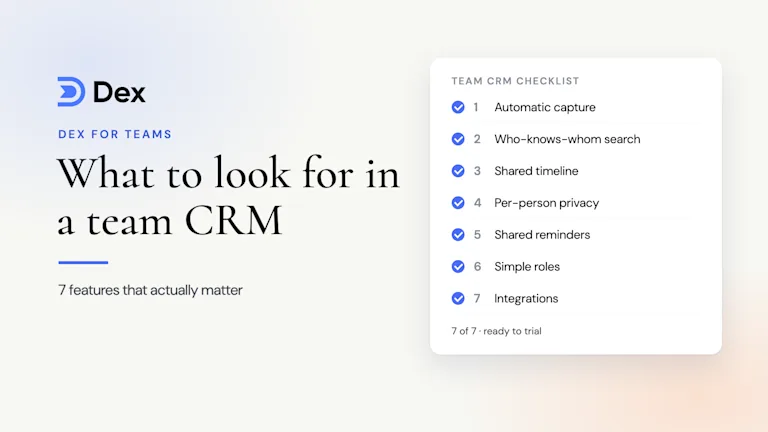
This is the only option of the five that handles all three problems above. You share selectively, the data stays current because it syncs, and each contact comes with history: who knows them, when they last talked, and notes. The trade-off is setup time and cost. Our checklist of team CRM features covers what to look for if you go this route.

How to share contacts without losing your personal network
Whatever method you pick, the same rules decide whether people actually share. Agree on them before anyone connects anything.
Separate work from personal first. Create a work folder, label, or group, and share that. Never share a whole address book.
Share by group, not by person. "Clients," "Partners," and "Investors" are easy to keep up to date. Hand-picking 400 individual contacts is not.
Decide what context gets shared. Names and emails are the minimum. Decide up front whether teammates see notes, email subject lines, or full messages. Most people are comfortable with who, when, and the subject line.
Name an owner for each important contact. Shared lists decay when everyone can edit and nobody is responsible.
Make it reversible. People share more when they know they can take something back. Pick a tool where each person can change what they share at any time.
Check in after a month. Search for five companies you're working on. If the shared list doesn't find a connection you know exists, something's not syncing.
Don't skip rule 5. People hold back when they're worried about oversharing, and knowing they can undo it takes most of that worry away.
Where Dex for Teams fits
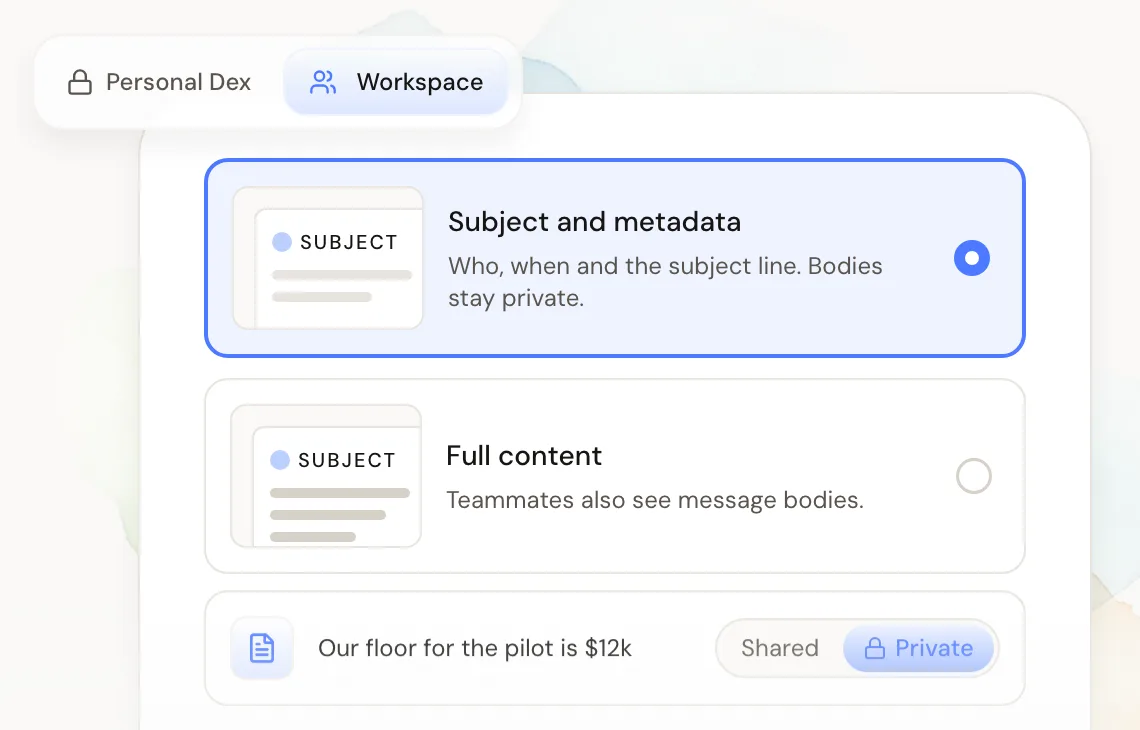
Dex is a personal CRM, and Dex for Teams adds a shared workspace on top of it. The whole thing is built around keeping personal and work apart. Your own Dex stays private, and the team workspace is a separate space that only holds what each member chooses to put in it: which accounts it sees, and which contacts and groups.
You also pick how much detail goes in from each account. The lighter option shares who, when, and the subject line, and keeps message bodies private. The other shares full content. Notes can be shared or kept private, and you can change any of it later.
Once people have shared, the workspace does the part a contact list can't:
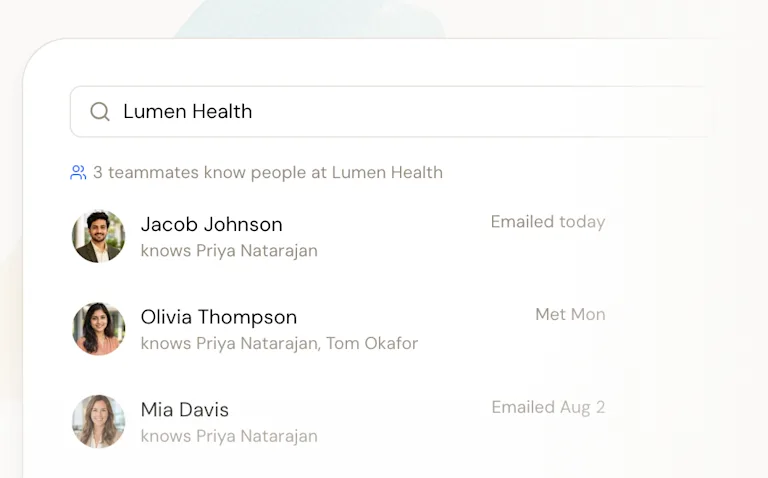
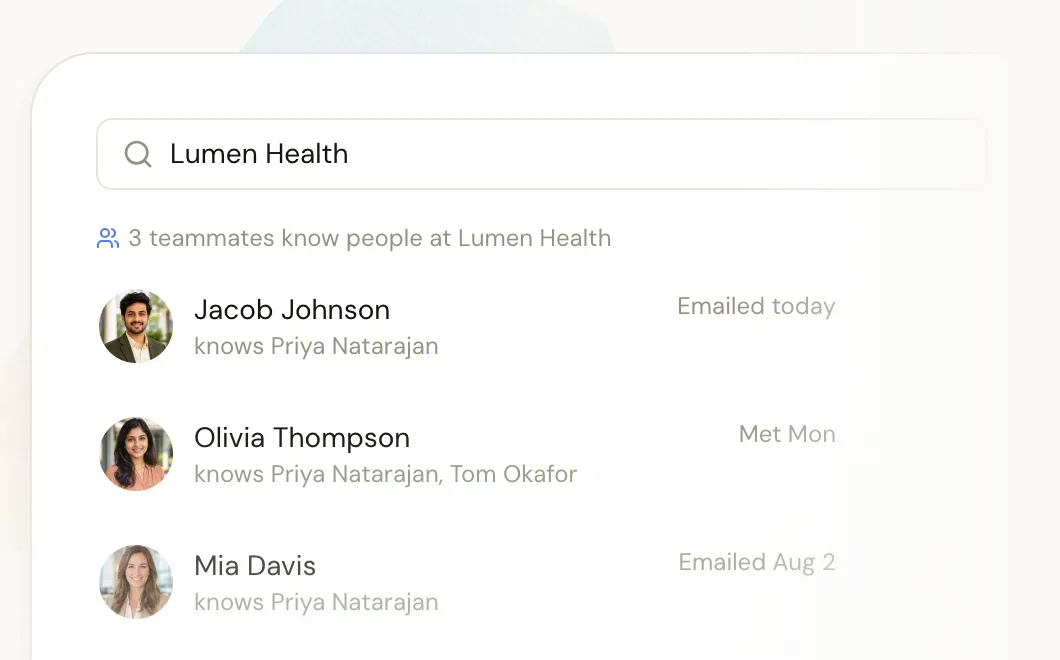
Search a person or company to see which teammates know them, who spoke with them last, and the history so far.
Emails, meetings, and notes from everyone working a relationship show up in one timeline.
Four roles (owner, admin, member, viewer) control who can edit and who can only read.
Setup happens inside Dex: go to Settings, then Team, create a workspace, choose a sharing level for each account, and invite teammates by email. Each teammate makes their own choices. There's a 14-day free trial with no card needed.
Dex doesn't replace a sales CRM with pipelines and forecasting. If you need those too, our guide to picking a CRM for teams without overbuying explains how teams run both.
FAQ
What is shared contact management?
Shared contact management is keeping a team's work contacts, like clients, partners, and vendors, in one place everyone can search and update. Good setups let each person choose what they share, so personal contacts stay private.
How do I share contacts with my team in Google?
In Google Workspace, you can delegate your contacts to someone in your organization from Google Contacts, once your admin turns on contact sharing. Admins can also add shared external contacts to the company Directory. Both share whole lists or admin-managed contacts, not a chosen subset.
Can you share a contacts folder in Outlook?
Yes, if you have a Microsoft Exchange account. You can share any contacts folder, including one you create for a project, and set permissions from read only to full editing. Shared contacts folders aren't supported in Outlook on the web.
How do I share work contacts without sharing personal ones?
Put work contacts in a separate folder, label, or group and share only that. Or use a team tool where each person chooses which contacts and accounts the team can see.
What's the difference between shared contacts and a CRM?
Shared contacts give a team the same names, emails, and phone numbers. A CRM adds history and context, like who on the team knows each contact, when they last talked, and notes from past conversations.
The bottom line
A quick recap of the options:
A CSV or Google Sheet is fine for a one-off, but it goes stale immediately.
Google Contacts delegation and Outlook folder sharing work inside one organization, with real limits on devices and browsers.
Google Workspace shared external contacts suit a short, admin-managed list of key partners.
For a team that needs context as well as names, a shared relationship workspace is the only option that shares selectively and stays current.
Whatever you use, separate work from personal before you share, and make sharing reversible.
If you do one thing this week, create a work-only folder or group and share that. It takes an afternoon and fixes the oversharing problem. Whatever gaps are left will tell you whether you need a dedicated tool for shared contact management.
Want to see who on your team knows whom, without anyone sharing their personal contacts? Start your free Dex for Teams trial and set up a shared workspace today.
Related guides